 NAS Access
 What this app is for
PART 1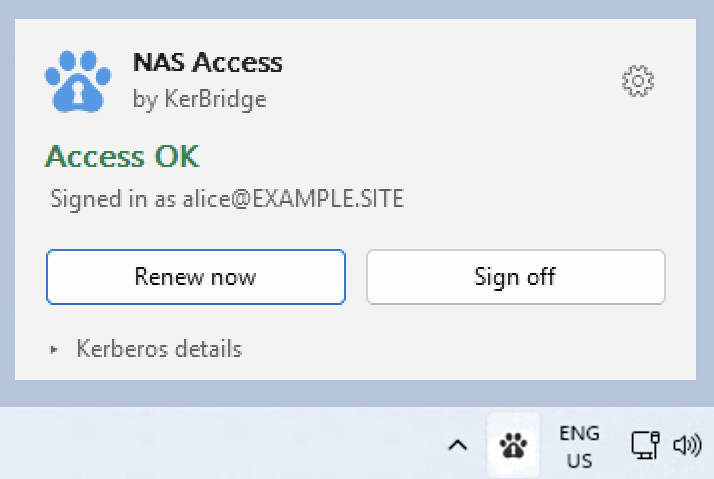
Two systems that don't naturally meet
Your account lives in the cloud. It is the same account you use for email and for signing in to work websites. Your organisation manages it there.
Your files live in your building. They sit on a file server — the box your network drives and shared folders come from. That server is deliberately old-fashioned about security, and it has never heard of the cloud.
Left alone, the two cannot agree that you are you.
NAS Access is the go-between
NAS Access converts your cloud sign-in into a pass the file server understands and accepts.
Three things worth knowing
The pass has a time limit. Typically most of a working day. This is normal and deliberate — it is what lets your organisation take access away when it needs to.
NAS Access quietly gets a fresh pass about halfway through, long before the old one runs out. On an ordinary day you will never see this happen.
It cannot renew what it does not have. If the app cannot get a fresh pass on its own, it tells you before the current one runs out, so you can click once and carry on.
▶ Technically the precise terms, for anyone who wants them
Your cloud account is an OIDC identity at an identity provider (Entra ID in most deployments). The proof is an OIDC access token, obtained through an authorization-code flow with PKCE in the system browser.
The broker is the KerBridge service your IT team runs. It validates the token and asks the KDC to issue a genuine Kerberos TGT (ticket-granting ticket) for your account in the on-premises realm.
The "pass pocket" is your login session's ticket cache — the LSA logon session on Windows, the Heimdal API: cache on macOS. Putting the ticket there is called injection. After that, the stock SMB client does ordinary Kerberos: it uses the TGT to get a service ticket for the file server. No part of the file access path is modified.
The "fresh pass at halfway" is re-injection, not a Kerberos-level renewal. According to our tests, Windows will ask the KDC to renew a KerBridge-injected TGT and then never install the result, so the agent runs the whole exchange again and injects a new ticket instead.
What it does not do
- It does not store your password. It never sees one.
- It does not read or change your files, your drives, or your drive letters.
- It does not replace your organisation's sign-in. It uses it.
- It does not need to be running for you to use your computer — only to keep your network drives reachable.
▶ Technically what is kept, and where
No secret at rest. The access token is discarded the moment the ticket exchange completes. The refresh token is held in process memory only and dies with the process — it is never written to disk or to the log. What is stored on disk is the broker URL, a cached copy of the discovered configuration, and this device's authorization state. It does not even really know about your NAS or other Kerberos services; it only deals with Kerberos TGTs.
The icon
PART 2NAS Access lives in the notification area. The icon is the whole status at a glance.
NAS Access lives in the menu bar. The icon is the whole status at a glance.
Faded does not mean broken. Full strength is reserved for nothing to see here, so that when there is something to see, it has the contrast to be seen.
The shapes matter as much as the colours — a triangle and a circle stay different for anyone who cannot easily tell amber from red.
On a Mac the same four shapes appear in the menu bar's single colour, because that is how the menu bar draws everything.
The status view
PART 3Clicking the icon opens a small panel. It shows you what needs you, then who you are, then how long, then why, if anything is wrong.
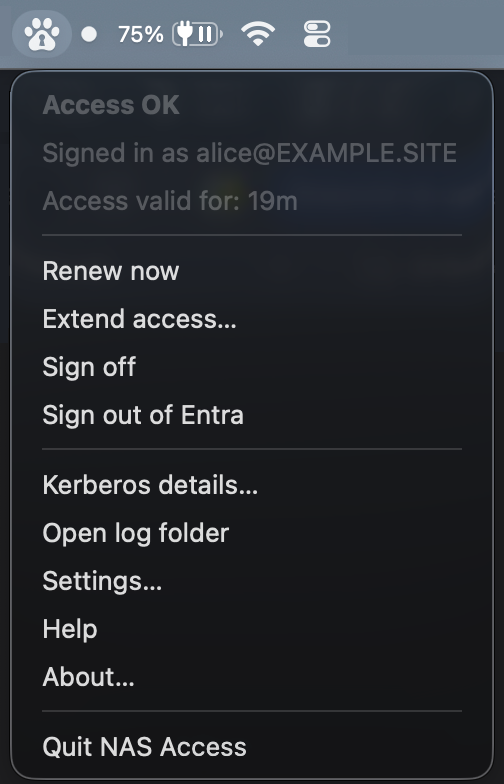
Clicking the icon opens the menu. It shows what needs you, who you are, how long, and why you need to act, if anything is wrong.
The headline
One line, in colour, naming the situation.
| Headline | What it means | What to do |
|---|---|---|
| Access OK | Your drives work, and the app can keep them working by itself. | Nothing. |
| Renewal uncertain | Your drives work now. The app is having trouble reaching your IT team's server. | Usually nothing — it often clears by itself. If it lasts, mention it to IT. |
| Access expiring | Your drives work, but access will stop at a known time, and nothing will renew it on its own. | Use the button that offers to extend access, whenever it suits you, before that time. |
| No access | Your drives will not open. | Read the explanation below the headline — it says why, and offers the button that fixes it. |
| Off | The app is not working here and is not expected to be — for example after you signed off. | Nothing, unless you want access back. |
An expiry warning is not a fault. It means the app has run out of quiet ways to renew — often simply because you closed the browser session, or the device's authorization is coming up for renewal. Your access is intact until the time shown. One click restores the quiet renewals.
▶ Technically what the headline is computed from
The headline renders Condition, one of Working, Flaky, WillStop, Stopped and NotStarted. It is a pure function of three local facts: whether a usable ticket is held, whether this machine is expected to be working here, and whether a silent supply for the next renewal exists.
No network fact enters it — a broker outage never moves the condition. It shows up as a blocker, and as Flaky only once it has persisted.
The identity line
| Line | What it means |
|---|---|
Signed in as you@example.site | The account your access — and anything you save — belongs to. |
Working as svc-builder | This computer has been set up to work as a different account. |
The second one is worth reading twice. On such a computer, files you save to the network drives are saved under that (often shared) account's name, not yours. If you sign in here, you are vouching for the machine — you are not getting your own access. This is normal on build machines, kiosks and shared workstations, and your IT team set it up deliberately.
▶ Technically device grants
The machine is delegated to get TGTs for a specific account: a grant_for target is configured, so only a device grant can obtain a ticket and the tickets carry the target's principal. A delegated sign-in authorizes access as the specified user, not as the person signing in — the sign-in proves who is at the keyboard, not the account the machine reaches your Kerberos services as.
The expiration clocks
| Line | What it means |
|---|---|
Access ends in 4h 12m | When the current pass runs out. Under normal conditions a fresh one arrives around halfway, so this is a number, not a deadline. |
Authorization expires in 6 days | This device's permission to skip the browser is coming to an end. Sign in once through the browser before then and it is extended. |
The two never appear as contradictory warnings — if access is genuinely expiring, the authorization clock is not the thing to worry about.
The explanation
When something needs saying, it appears in its own block, below the facts. These are the ones you may see:
| What it says | In plain terms | What to do |
|---|---|---|
| Needs a browser sign-in | Time to prove it's you again. | Sign in through the browser. Takes a few seconds. |
Can't reach server |
The app cannot get to your IT team's server. | Check you're on the network or VPN. Drives you already have open usually keep working. |
No settings from server |
The app reached the server but hasn't got its configuration yet. | Wait. It retries on its own. |
Windows not set up for EXAMPLE.SITE |
A one-time setup step for this computer hasn't been done. | Use the setup button. It asks for administrator permission and a restart. |
| Kerberos TGT went missing early | This device's pass vanished before its time. Access may still be working. | Usually nothing: the app fetches a new one by itself. If a drive asks for a password, renew. |
| Your account was refused | Your organisation's server did not accept your account for these drives. | Not something this computer can fix — contact IT. |
This device isn't authorized to work as account |
A shared-account machine that has not been authorized yet. | Someone permitted to authorize it must sign in here. |
| Your organization refused this authorization | Policy does not permit this device to skip the browser. | Trying again will not help. Contact IT. |
| Broker URL not configured | First run — the app doesn't know which server to talk to. | Enter the address your IT team gave you in Settings. |
▶ Technically blockers versus actions
These are blockers: what is missing right now, immediate and unentailed. They are a list rather than a ranking, because several can be true at once, and the model reports all of them rather than only the loudest.
Blockers explain; actions resolve. They are not parallel lists and nothing lines up between them. The unreachable-server blocker merges unreachable, TLS-refused, rate-limited and 5xx, because those four differ in cause but not in what you do about them; the exact sentence stays in the detailed message.
Kerberos details
A collapsed section for when someone is helping you. It carries the realm, the pass's end time, what the next renewal will use, and when the app will next try.
The most useful row is the one naming what the next renewal will use:
| Value | What it means |
|---|---|
| this device's authorization | Silent. This device is trusted for a set number of days. |
| your Windows account | Silent. Windows' own sign-in is doing the work. |
| your browser sign-in | Silent, for as long as the app keeps running. |
| nothing — needs you | This is why the headline warns that access is expiring. |
The buttons
PART 4Two conventions worth learning
A label ending in "…" means one more step is coming — a browser window, or a question you have to answer. A button without one just does what it says. That is the only difference between the two renewal buttons: they promise the same result, but one of them will open a browser.
A shield on a button means Windows will ask for administrator permission. It is always there on those buttons, whether or not you happen to be an administrator.
Getting access
| Button | What it does |
|---|---|
| Sign in… | Opens your browser, signs you in, gets a pass. The ordinary way to start. |
| Extend access… | The same thing, worded for when you already have access. Gets a fresh pass and restores quiet renewals. |
| Renew now | Gets a fresh pass without a browser, using whatever the app already has. Offered only when it can actually work. |
| Cancel | Appears only while a browser sign-in is waiting. Stops waiting for it. |
If the browser-free renewal is offered, prefer it — it is the cheap one, and it is only ever offered when it will work.
Leaving — the three separate doors
These sound similar but have a different effect. This is the one table on this page worth bookmarking.
| Button | Ends your access to the drives | Ends this device's authorization | Ends your browser sign-in |
|---|---|---|---|
Sign out of Entra |
No | No | Yes |
| Remove authorization… | No | Yes | No |
| Sign off | Yes | No | No |
Sign out of Entra
Closes the sign-in session this app left in your browser. It is good hygiene on a shared computer. It does not touch your drives.
Remove authorization…
Gives up this device's permission to reach your drives without a browser. Your access right now is untouched — you simply go back to signing in through the browser each time. It cannot be undone: authorizing again creates a fresh permission rather than restoring the old one.
On a shared-account machine — one whose panel says it is working as another account — there is no "go back to the browser". Authorization is the only way such a machine gets access, so removing it means access runs out and stops. The confirmation tells you exactly how long you have.
Sign off
Throws away this computer's pass. It is the everyday one — the thing to do when you are done for the day, or don't need shared drive access any more.
One honest caveat: network drives you already have open may keep working until you close them or restart. That is your operating system holding a connection open, and no app can promise otherwise. But nothing new can be opened.
▶ Technically what each door actually does
Signing out of the identity provider ends the SSO session at the authority and drops the in-memory refresh token. It cannot sign you out of Windows itself; an application can only release its own session.
Removing the authorization deletes the device grant's non-exportable ECDSA P-256 key from this device's hardware key store first, then revokes it at the broker — that order is what makes it work offline.
Signing off is a realm-scoped purge of the ticket cache — the TGT and the service tickets for this realm only. Tickets for other realms are left alone, which is what makes it safe on a cloud-trust tenant. An SMB session already established keeps serving files off an empty cache with no Kerberos traffic, so no ticket-scoped verb can honestly promise that connections end.
Fixing things
| Button | What it does |
|---|---|
| Set up Windows… | One-time, per computer. Teaches Windows about your organisation's realm. Needs administrator permission and a restart afterwards. |
| Repair network drives… | Clears a stuck network-drive state. Save your work first — every network drive on the computer disconnects, not just these ones. |
| Set up Windows again… | The same setup, applied over a partial or stale one. In Settings ▸ Advanced. |
| Forget {realm}… | Removes the setup entirely. In Settings ▸ Advanced. |
Anything that cannot be undone asks you first, tells you exactly what it will do, and defaults to cancelling. You can close that window and let the work run — it will tell you how it went.
macOS needs none of this. It finds the realm by itself, so there is no setup step, no administrator prompt anywhere in the product, and no repair — a dropped connection there simply reconnects.
Fixing things
macOS needs none of this. It finds the realm by itself, so there is no setup step, no administrator prompt anywhere in the product, and no repair — a dropped connection there simply reconnects.
Authorizing this device
| Button | What it does |
|---|---|
| Authorize access… | Lets this device get passes without a browser sign-in, for a set number of days. |
| Authorize again… | The same, once authorization is already held — the way to extend it. |
What actually happens: a key is created inside this device's security chip. It cannot be copied off the device, it covers your account on this device only, and your IT team can revoke it at any time.
You will get a reminder before it expires. Signing in through the browser once extends it.
▶ Technically the device grant
This is a KerBridge device grant — a non-exportable ECDSA P-256 key in this device's hardware key store. On Windows that is the TPM, created through CNG's platform crypto provider at user scope, so it needs no elevation and dies with the profile. The broker holds the matching public key and enforces its own day cap, so lowering that cap shortens every outstanding grant.
On a Mac it is a transient Secure Enclave key. What persists is the Enclave-wrapped blob, in a 0600 file beside the app's settings; it is not usable on any other Mac. The Enclave draws no line between local accounts, so on that Mac the file mode is what stands between the grant and another account able to read the file.
Everything else
| Item | What it does |
|---|---|
| Open status | Brings the status panel up. |
| Settings… | See the Settings section below. |
| Help | This page. |
| Open log folder | A technical record of what the app did, for when someone is helping you. Appears when something has gone wrong, and always in Settings ▸ Advanced ▸ Troubleshoot. |
| Quit NAS Access | Stops the app. Your current pass stays valid until it runs out, and nothing renews it after that. |
Settings
PART 5Basic
Broker URL — the server your IT team gave you. This is the only thing the app needs to know; everything else it asks that server for.
If it says the URL was set by your IT team and cannot be changed here, it has been set centrally, which is normal on a managed computer.
Start at login — signs you in automatically after you log in, so your drives are ready when you are. Recommended.
Using the Windows sign-in when possible skips the browser when Windows' own sign-in can vouch for you silently. Leave it on; if it can't help, the app falls back to the browser and nothing is lost.
Advanced
Authorization — shows what this device is authorized as, and holds the buttons that create and remove it. The field for authorizing this device on behalf of another account is for shared-account machines: leave it empty for your own account.
Changing that field decides who the next authorization is for. It changes nothing about the one already held.
Windows setup — whether this computer knows about your organisation's realm, plus the buttons to redo or remove it.
Troubleshoot — opens the log folder.
On macOS
Settings is a single sheet with the broker URL and the start-at-login switch, and an OK / Cancel pair — the other sections describe things macOS does not have.
About
Version and licence.
Notifications
PART 6The app speaks rarely and only about things that matter.
| You'll hear about | Not about |
|---|---|
| Access being restored after a problem | Routine renewals that worked |
| Access about to stop, around twenty minutes ahead | The pass clock ticking down normally |
| Access having stopped | Brief network trouble that fixed itself |
| Your device's authorization coming up for renewal | A machine that is simply switched off |
Nothing is lost if you miss one. A notification is an interruption, never a record — the status panel always has the current truth, and nothing decays. There is no unread badge and no list of what you missed.
The renewal reminder waits until you are actually at the keyboard, rather than firing at three in the morning.
When something isn't working
PART 7Start with the icon, then the panel. It almost always names the problem and puts the fix on a button.
| Symptom | Likely cause | What to do |
|---|---|---|
| A drive asks for a password | The pass has run out or was never obtained | Open the panel. It will say there is no access, or that access is expiring. |
| Drives worked, then stopped mid-session | Windows' NTLM hiccup | Use the repair button, after saving your work |
| The panel says it can't reach the server | Off the network, or VPN down | Reconnect. It retries by itself and recovers. |
| IT just gave you access to a folder, and it still won't open | Your pass was issued before the change | Renew — a pass carries a snapshot of your groups, so a fresh one is needed |
| Everything looks fine, but one folder is denied | Permissions on that folder | Not a NAS Access problem — ask whoever owns the folder |
| The panel says an administrator has to fix it | It does | Send IT the message, exactly as written |
Reading an error message
Every detailed message is written in two halves:
When you report a problem, quote the whole line — the handle is often all your IT team needs.
Quick answers
PART 8The words this app uses
GLOSSARY| Word | Means here |
|---|---|
| Access | Being able to authenticate on your network file server |
| Sign in | Proving who you are, in your browser |
| Sign off | Throwing away the current pass to network drives |
| Authorization | This device's permission to skip the browser for a while, optionally as a different user |
| Renew | Getting a fresh pass without bothering you |
| Realm | The name of the on-site system your drives belong to, like EXAMPLE.SITE |
| Broker | Your IT team's server — the one NAS Access asks a pass from |
| Ticket | The pass itself. A technical term; it only appears under the Kerberos details |
| This device | The computer you are sitting at |
Asking for help
FINALLYHave these ready — the app shows all of them:
That is usually enough to resolve it without anyone touching your computer.